Google Ads + Webflow: the complete guide to stop juggling ten tabs
You built a clean, fast, well-designed Webflow site. You launch a Google Ads campaign. And suddenly the doubts creep in: is the form properly tracked? Does the GCLID pass through? Is the conversion showing up in Google Ads? And that whole GTM thing, how do you actually install it on Webflow?
Welcome to the topic everyone avoids explaining clearly.
In this article, we'll walk through how to connect Google Ads to Webflow the right way, why doing it correctly matters (hint: your campaign performance depends on it), and where GTM fits into the equation. Without drowning you in technical details.
Why integrate Google Ads with Webflow, and why now?
Webflow has become the go-to tool for building high-performance marketing sites. Fast landing pages, flexible CMS content, polished design. Everything you need to welcome paid traffic under the best conditions.
But for a long time, something was missing: a native connection with Google Ads. You had to paste scripts by hand, hope conversions would show up, and constantly switch between Webflow, GTM and Google Ads like you were juggling three different apps. Doable, but frankly not fun.
Things have changed. Google and Webflow launched an official integration, there are now several approaches depending on your level and needs, and most importantly: you can manage everything without leaving Webflow, if you want to.
Let's go through everything in order of complexity.
The 4 ways to connect Google Ads to Webflow
There isn't one single method, there are four. The choice depends on your situation: managing classic Search campaigns? Want advanced tracking? Running an agency with multiple clients? Here's a clear breakdown.
1. The official Google Ads for Webflow app: the fast lane
This is the most direct solution. The Google Ads for Webflow app, developed in partnership by Webflow and Google, lets you create and manage Performance Max campaigns without ever leaving Webflow.
What does it actually look like?
You install the app from the Webflow marketplace, connect your existing Google Ads account (or create one), and build your campaign directly from the Webflow interface. Images? They come from your asset library. Headlines and descriptions? You write them in the app, or use the built-in AI suggestions. The Google Tag? It installs automatically when the campaign goes live.
Once the campaign is live, you can track impressions, clicks, conversions and cost directly from Webflow. Pause, resume, edit budget: all without opening Google Ads.
The catch? The app only supports Performance Max campaigns. If you want to manage Search campaigns with precise keyword-level targeting, you'll need to use the classic Google Ads interface, and use one of the tracking methods below.
A practical tip: before launching, configure your conversion goal carefully. Choose "form submission" if you want to track form completions, not just page views. It makes all the difference for automatic bid optimization.
2. Thank-you page URL tracking: the no-code solution
No paid Webflow plan, or just want something simple? This method works on all plans, including free ones.
The idea: when a user submits your form, they're redirected to a dedicated thank-you page. Google Ads detects that visit and records a conversion.
Google Ads side: go to Conversions > Create event > No code > Enter your thank-you page URL.
Webflow side: in your form settings, enable post-submission redirect and paste the thank-you page URL.
It's the least precise method (it measures a page visit, not an actual event), but it works well for simple lead generation funnels with a single conversion action.
3. Google Tag Manager on Webflow: the right way
If you're doing serious marketing, GTM is probably what you want. A single container to manage all your pixels and scripts: Google Ads, GA4, Meta Pixel, LinkedIn Insight Tag... without touching Webflow code every time.
Webflow itself recommends GTM as the reference method for advanced tracking.
Option A: the Google Site Tools app (recommended)
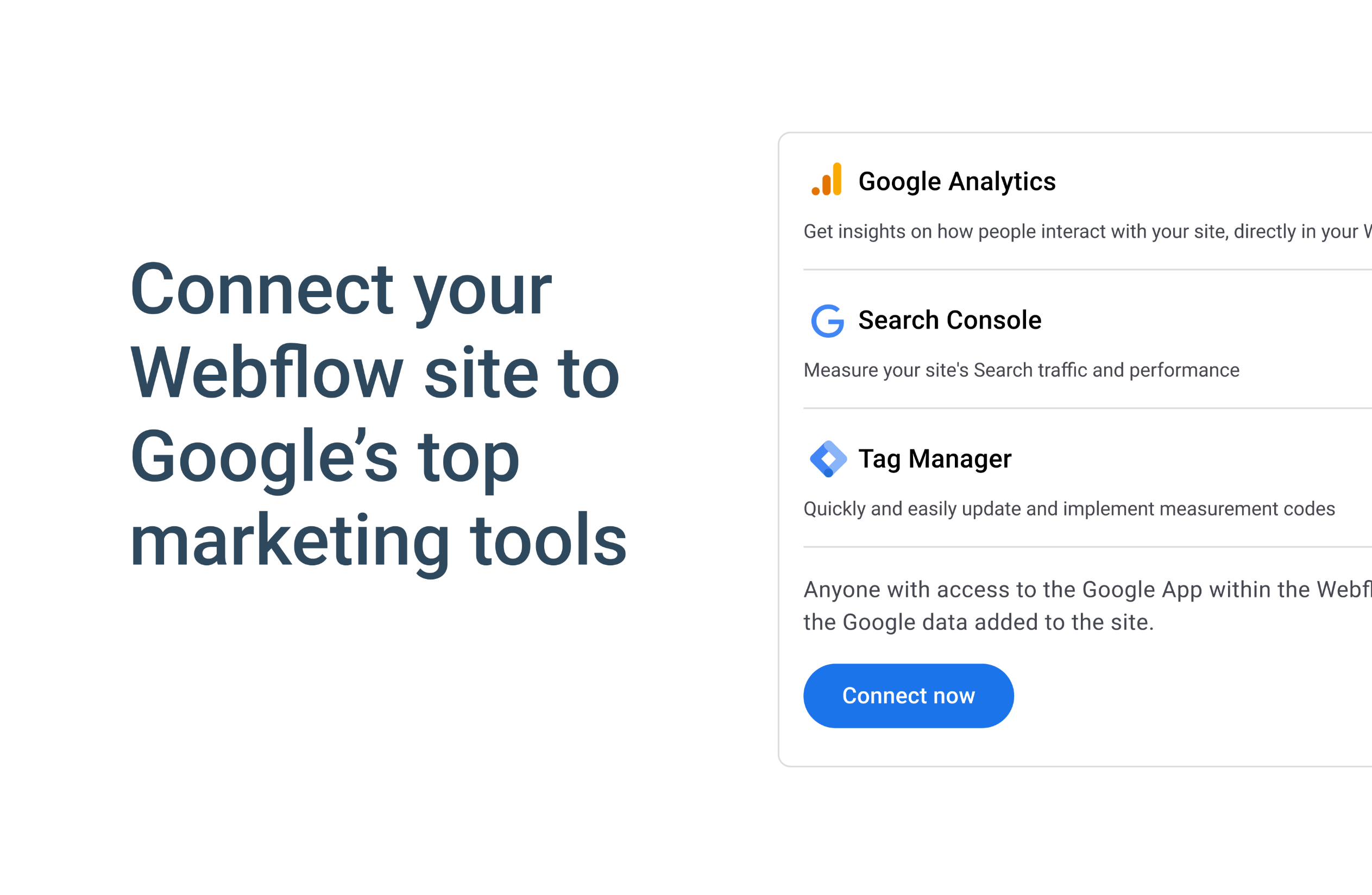
Webflow built a Google Site Tools app that connects GTM, GA4 and Google Search Console in a few clicks via an OAuth flow. It automatically injects the GTM container across the entire site. Ideal if you want everything connected quickly.
Important note for European sites: the app injects a <noscript> tag that some JavaScript-based consent management platforms can't block. If your site targets EU users and you need strict GDPR compliance, the manual installation below gives you more control.
Option B: manual installation via Webflow Custom Code
The classic approach, works on all Webflow sites with a custom domain and a paid plan.
Go to tagmanager.google.com, create an account and a Web container, and grab your two code snippets.
In Webflow, go to Site Settings > Custom Code:
- Paste the
<script>GTM snippet into the Head Code field - Paste the
<noscript>GTM snippet into the Footer Code field
Save and publish your site.
To verify everything is working, use GTM's Preview mode: click "Preview", enter your site URL with your custom domain (not the .webflow.io domain), and confirm the connection is established.
Don't forget: in GTM, add a Conversion Linker tag with an All Pages trigger. This tag stores GCLID parameters in first-party cookies. Without it, the GCLID can get lost during the post-form redirect, and your attribution goes out the window.
The Webflow AJAX form problem
One important gotcha: Webflow submits forms via AJAX. The page doesn't reload. That means standard conversion tags (which fire on page load) won't trigger.
The solution recommended by Webflow: create a dedicated thank-you page and redirect the user there after form submission. Configure the redirect in the form settings, then place the Google Ads conversion snippet in the Custom Code (Footer) of that specific thank-you page.
This method works whether you're using GTM or a direct Google Tag installation.
4. Going further: Zapier and the API
Zapier lets you connect Webflow form submissions to offline conversion uploads in Google Ads, or automatically add contacts to Customer Match lists for remarketing. No backend, no code required.
The Webflow API + Google Ads API is the path for advanced setups: offline conversion uploads from a CRM, Customer Match audience syncing with SHA-256 hashing (required for GDPR), or syncing CMS content to Dynamic Search Ads page feeds. It requires server-side development, but gives you full control.
Optimizing a Webflow landing page for Google Ads
Having tracking in place is good. Having a landing page that converts is better.
A few simple principles that make a real difference:
- One message, one action. The page must extend exactly what the ad promises. If the ad mentions a specific offer, the landing headline must use the same words. Google evaluates message-to-page consistency in its Quality Score, which directly impacts your CPC.
- Form above the fold. On mobile especially. Nobody scrolls to find a form. Webflow lets you place it exactly where you want, take advantage of that.
- A well-thought-out thank-you page. It's not just for tracking. It's also an opportunity to suggest a next step: a call, a resource to download, access to your portfolio.
- Page speed. Webflow generates clean code and handles hosting well, but watch out for heavy images and unoptimized scripts. Google factors speed into ad ranking via Core Web Vitals. Green scores mean a lower CPC.
- UTM parameters. Set them up in your ads to precisely identify which keyword or audience converted. Even with Google Ads auto-tagging doing part of the work, clean UTMs in GA4 give you a sharper read.
What this means in practice for a Webflow site
When everything is properly connected, here's what you get concretely:
Google receives accurate conversion data for every lead or purchase. Its algorithm can then automatically optimize bids to find more conversions of the same type. That's the principle behind Performance Max and Smart Bidding: without reliable conversion data, the algorithm flies blind and burns your budget.
You can also build remarketing audiences from your site visitors and re-serve targeted ads. That flows through GA4 linked to Google Ads, or through Customer Match audiences if you want to target from an email list.
And finally, you have complete visibility over the journey: from ad to click, from click to page, from page to conversion. That's what a Google Ads setup that actually works looks like.
In summary: which method should you choose?
- Launch fast, no code: Google Ads for Webflow app
- Free Webflow plan: Thank-you page URL tracking
- Multiple pixels to manage: GTM via Google Site Tools or manual install
- Classic Search campaigns: GTM + Google Ads tags inside GTM
- Advanced remarketing or offline conversions: Zapier or API
Want us to set this up together?
Setting up clean Google Ads tracking on Webflow takes time, especially when you want it done right: GCLID preserved, AJAX forms handled, Conversion Linker in place, Enhanced Conversions enabled.
This is exactly the kind of setup I configure for my clients, combining Webflow and Google Ads so their campaigns run on solid data.
Building a Webflow site and planning to run Google Ads? Let's talk.
FAQ
How do I connect Google Ads to Webflow without code?
The simplest method is the official Google Ads for Webflow app, available on the Webflow marketplace. It automatically creates the Google Tag and lets you launch Performance Max campaigns directly from Webflow, without touching any code.
Why aren't my conversions showing up in Google Ads from Webflow?
The most common issue is related to Webflow forms submitting via AJAX: the page doesn't reload, so standard conversion tags don't fire. The recommended solution is to create a dedicated thank-you page with a post-submission redirect, and place the conversion snippet there.
Do I need Google Tag Manager to use Google Ads with Webflow?
No, GTM isn't required. You can use the official app, URL-based tracking, or embed the Google Tag directly in Webflow's Custom Code. GTM is recommended if you manage multiple tracking tools (Meta, LinkedIn, GA4) and want to centralize everything.
Is the Google Ads for Webflow integration free?
The Google Ads for Webflow app is free to install from the Webflow marketplace. You only pay your ad spend directly to Google Ads. A paid Webflow plan is required for some advanced tracking features via Custom Code.
Can I run Google Ads remarketing on a Webflow site?
Absolutely. Remarketing works through GA4 linked to Google Ads (audiences based on on-site behavior), or via Customer Match lists if you want to target from an email database. Both methods are fully compatible with Webflow.